
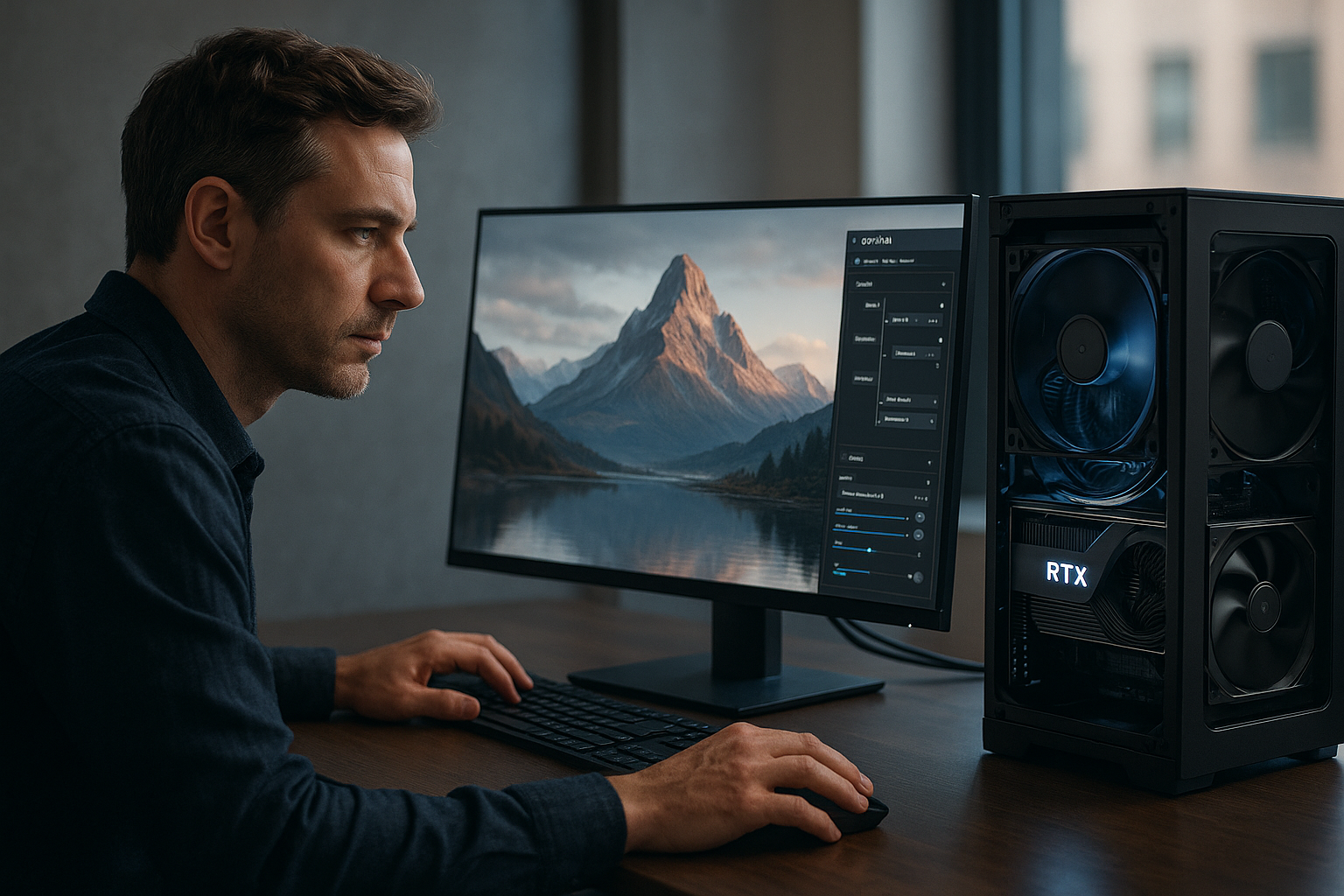
How to Get Started With Visual Generative AI on NVIDIA RTX PCs
Modern creators and developers are moving generative workloads onto PCs to cut latency, protect data, and control costs. With local visual generative AI on NVIDIA RTX PCs, you can run image, video, and multimodal foundation models directly on GeForce RTX GPUs—no cloud round trips required [1][2].
What you need: hardware and software checklist
- An NVIDIA RTX AI PC or workstation with a GeForce RTX GPU. The GeForce RTX 50 Series provides very high AI throughput and generous VRAM, which helps with heavier models and larger prompts [1][2].
- NVIDIA’s software stack. Foundation models are packaged as [NVIDIA NIM microservices] with consistent, standards-based endpoints that run locally on RTX PCs and across cloud environments [2].
- Optional tools and workflows. NVIDIA offers AI Blueprints with pre-built, local pipelines for media and image generation, plus demos that show how to wire everything together [1][2].
These pieces ensure you can run, test, and integrate models on-device while keeping data on the machine [1][2].
NVIDIA software stack: NIM microservices, AI Blueprints, and demos
NIM wraps foundation models as microservices with stable APIs, so developers can connect local inference to desktop apps, games, and creative tools without bespoke integrations for each model [2]. AI Blueprints provide pre-built workflows for common tasks—such as image and multimedia generation—that can be customized and extended on RTX hardware [1][2]. For hands-on exploration, NVIDIA’s demos, including the ChatRTX demo, illustrate how to plug local models into interactive interfaces on the PC [1].
Quick start: run your first local image model
- Set up your RTX AI PC with the latest NVIDIA software and pick an image workflow from AI Blueprints or a demo app that runs locally [1][2].
- Start the relevant NIM microservice or local pipeline, and use the standardized endpoint to send prompts and parameters [2].
- Iterate on prompts, styles, and performance settings to balance speed, quality, and VRAM use on your system [1][2].
This approach scales from simple image generation to multimodal tasks, all executed locally for lower latency and better data control [1][2].
Deep dive: RTX‑accelerated 4K video generation and LTX‑2
For video creators, NVIDIA provides an RTX‑accelerated pipeline capable of 4K AI video generation on PC, with controls for artistic style and content fidelity [3]. The pipeline includes open weights for the LTX‑2 video model and updates to ComfyUI optimized for RTX hardware. A complete workflow is available for download, enabling artists to build or adapt pipelines for their projects [3].
A key optimization is weight streaming in ComfyUI: when VRAM is constrained, the system can shift some model weights to system RAM, allowing larger or more complex video graphs to run on mid‑range GPUs [3]. Together, these advances lower hardware barriers and expand what’s possible for local video synthesis on consumer RTX systems [3].
Performance tips: VRAM, weight streaming, and ComfyUI optimizations
- Use ComfyUI RTX weight streaming to offload portions of the model to system RAM if VRAM is tight, enabling larger graphs and models to run [3].
- Adjust generation parameters and pipeline components to balance speed versus quality, testing at lower resolutions before scaling to 4K [3].
- Consider upgrading to GeForce RTX 50 Series GPUs if you frequently hit VRAM limits or need faster throughput for complex scenes and longer clips [1][2][3].
local visual generative AI on NVIDIA RTX PCs
For developers, NIM standardizes how you call models locally. You can connect NIM microservices to a desktop app with familiar API patterns, then iterate on prompts and routing logic as features evolve [2]. This architecture works across cloud and local environments, letting you prototype on an RTX PC and scale as needed without reworking endpoints [2].
Typical integration flow:
- Choose a NIM microservice for the model you need (vision or multimodal) [2].
- Call the standardized endpoint from your application to send inputs and receive outputs locally [2].
- Incorporate the results into creative tools, games, or enterprise apps while keeping data on-device [1][2].
Use cases and workflows for businesses and creators
- Creative studios: Build iterative image and video pipelines with AI Blueprints; render previews locally and scale quality as needed [1][2][3].
- Marketing teams: Automate visual content variants while keeping in-progress assets on secured workstations [1][2].
- Developers: Embed local inference into apps or game engines using NIM microservices and standardized endpoints [2].
These on-device workflows help reduce latency, improve privacy, and provide predictable costs by minimizing cloud dependence [1][2].
Troubleshooting and next steps
If you encounter VRAM limits, enable weight streaming in ComfyUI and simplify graph complexity before escalating to 4K [3]. Explore demos like the ChatRTX demo to see how local interfaces can connect to models through NIM [1][2]. For creators, try the LTX‑2 video model with the RTX‑optimized ComfyUI workflow to test 4K pipelines on your current GPU [3].
For official SDKs and documentation, you can also visit the NVIDIA developer site (external) at the NVIDIA Developer portal.
To keep building your stack of practical methods and templates, you can explore AI tools and playbooks.
Sources
[1] NVIDIA GeForce RTX AI PCs | Powering Advanced AI
https://www.nvidia.com/en-us/ai-on-rtx/
[2] NVIDIA Launches AI Foundation Models for RTX AI PCs
https://nvidianews.nvidia.com/news/nvidia-launches-ai-foundation-models-for-rtx-ai-pcs
[3] NVIDIA RTX Accelerates 4K AI Video Generation on PC
https://blogs.nvidia.com/blog/rtx-ai-garage-ces-2026-open-models-video-generation/
